wenglor AI Lab - What's new?
Highlight
Preview resized image
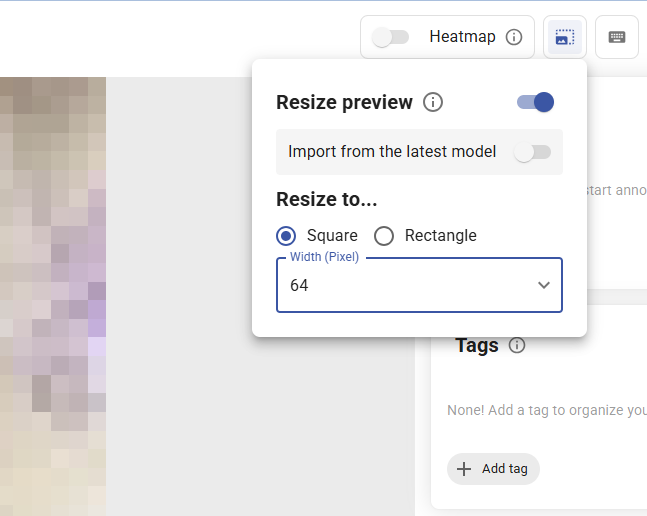
You can now preview how your images look after resizing, directly on the image page! Since AI models always resize input images during inference, this tool helps you verify that key features remain visible and class-defining details are preserved at your target dimensions.
To get started, open any image on the image page and click the Resize icon in the toolbar (or press R). Once enabled, the icon turns blue and the view resets to fit the screen automatically.
You can choose between square or rectangle resize modes and specify your target dimensions - the same pixel options available on the model configuration page. Your resize settings are saved per dataset in the browser, so they'll be ready next time you return.
Want to match your model's exact input size? Toggle Import from latest model to automatically apply your model's configuration to the preview. If no model has been trained yet, you'll be prompted to train one first.
Filter images by date and time
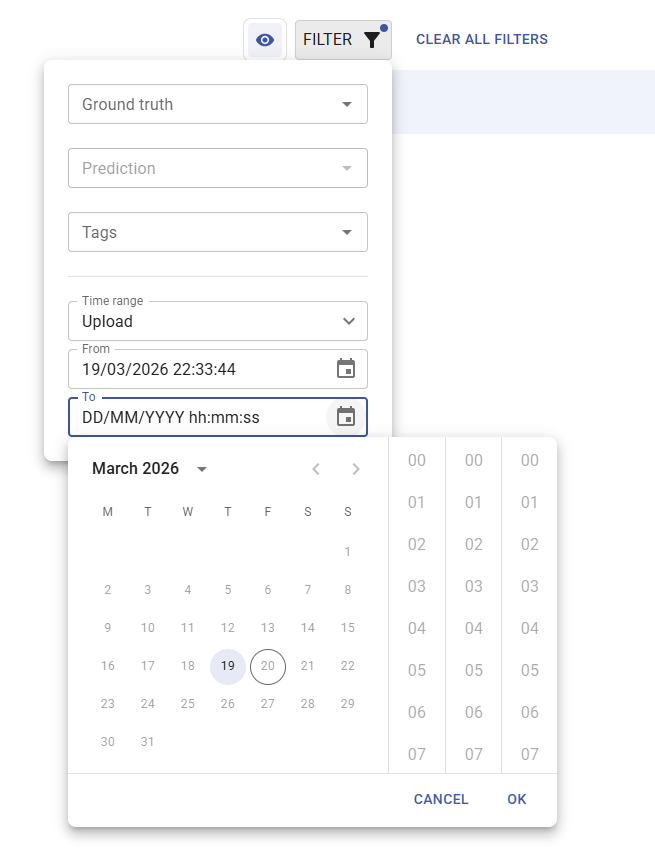
You can now filter images on the dataset page by date and time range! This makes it much easier to find images from a specific capture session, review recently uploaded batches, or track down changes made within a particular time window.
Click the Filter button and specify your desired range — then choose whether to filter by upload, creation, or last updated. Only images matching your criteria will be shown, so you can stay focused on exactly what you need.
As usual, we have also included bugfixes and performance improvements. We hope you enjoy the new features and improvements!
- Resolved website access issue for mobile, tablet, and console users.
Highlight
Image upload revamp
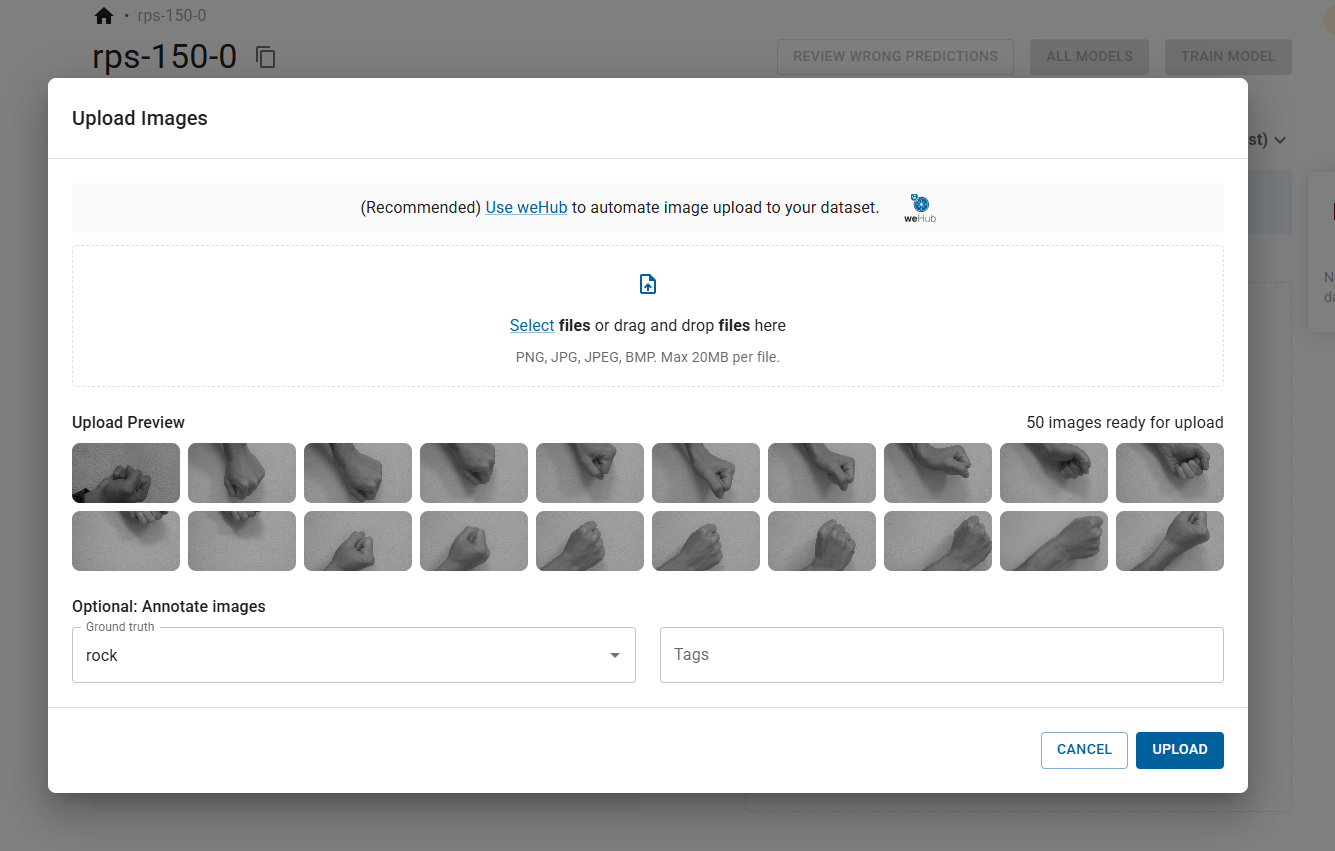
You can now annotate the images when you upload them! This is especially handy when your images are already sorted into folders by class. Just drag and drop the images, pick the right class for that batch, hit upload, and you're done. While the upload is running, you'll see a clear progress bar so you always know how it's going. Get started by going to dataset page, then either drag & drop your images or click the upload icon to get started.
Dataset export
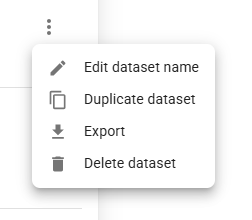
Yes, you can now download everything you've carefully curated in one go! Just head to datasets page, click the kebab menu and select 'Export'. An email with a download link will be sent to you shortly. The exported dataset is in the datumaro format. We’ve included a handy code snippet in the README.md file inside the ZIP to show how easy it is to load the dataset back into Python (using Datumaro itself or other tools). Great for further processing, converting to another format, training models, or just keeping a portable backup.
Quick introduction video
We've added a short welcome video right on the AI Lab dashboard!
When you log in, you'll now see a clean, embedded video player that walks you through the full workflow and best practices in under 5 minutes:
- Capturing images with your wenglor camera
- Buffering and reliable upload via weHub
- Annotating and organizing in AI Lab
- Training a deployment-ready model
- Deploying back to uniVision for real-time inference
It's the perfect quick-start for new users or a handy refresher!
As usual, we have also included bugfixes and performance improvements. We hope you enjoy the new features and improvements!
Highlight
Transfer dataset
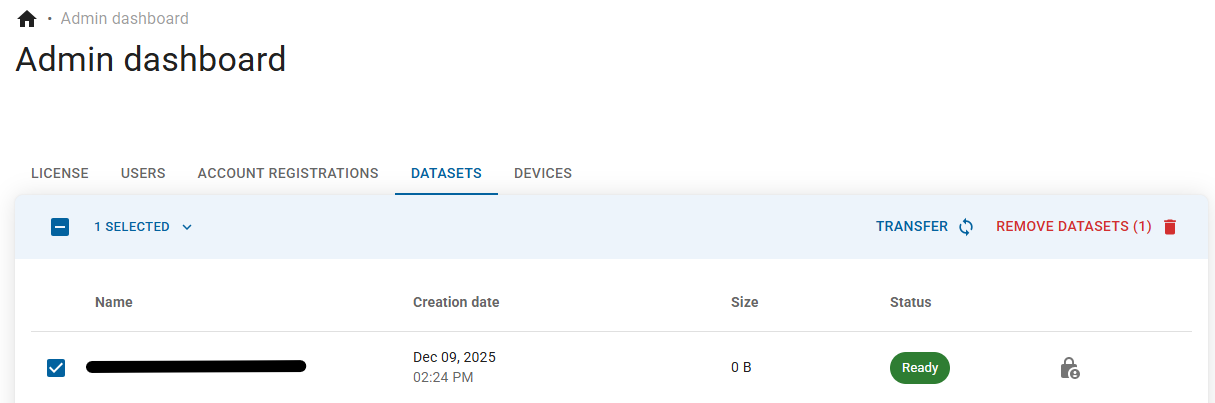
You can now instantly transfer datasets to other AI Lab accounts! Easily hand over full ownership of a dataset to another user or team, perfect for collaborative workflows like system integrators delivering trained datasets to customers after factory acceptance test. The entire process is simple, secure, and fully auditable, with automatic email notifications at every step to keep both parties informed. Get started by going to 'Datasets' of your 'Admin dashboard', select a dataset and click 'Transfer'!
Prediction score at image page
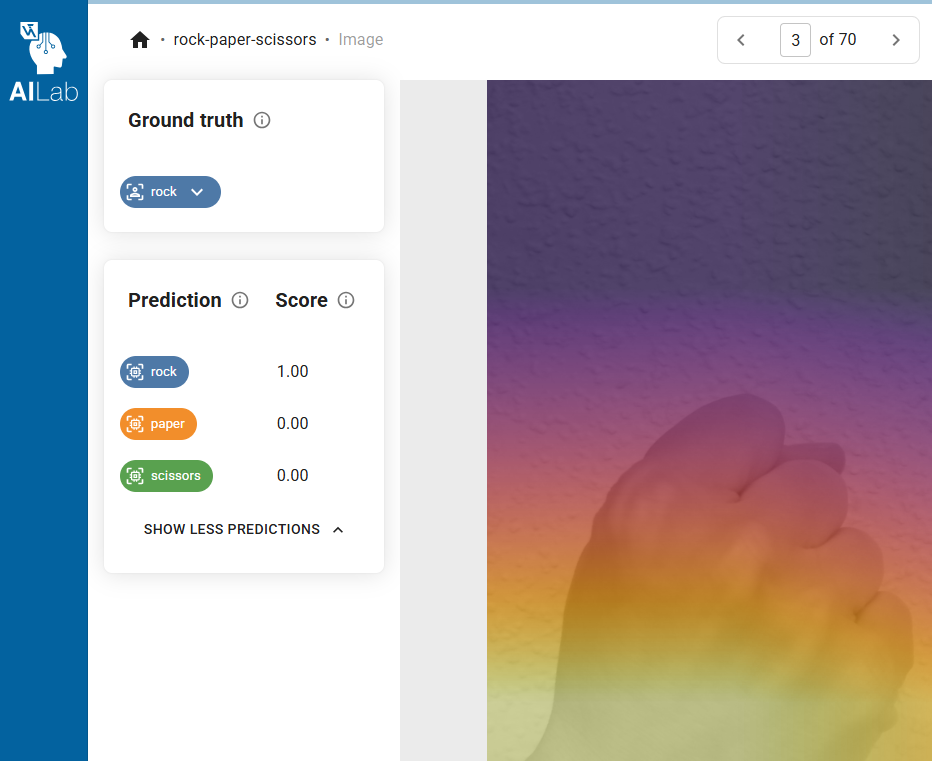
You can now see the exact prediction score for all classes directly on the image detail page!
The prediction score (between 0.0 and 1.0) shows how confident the model is in each possible class.
- A score close to 1.0 → the model is very sure (e.g., 0.98 NOK = almost certain the part is defective)
- A score close to 0.5 → the model is uncertain (perfect cue to review, re-label, or add similar images)
- A score close to 0.0 → the model is confident it’s NOT that class
Why this matters for data-centric AI:
Low-confidence predictions instantly highlight the images where your model is weakest. Instead of guessing why did the model get this wrong? You now immediately see where it’s unsure, making it dramatically easier to prioritize new data collection, clean labels, or trigger active-learning loops.
Dataset statistics at dataset page
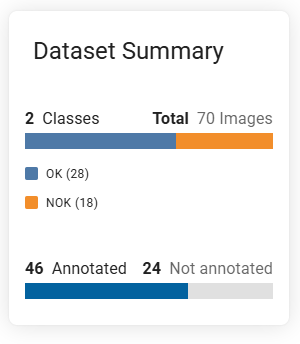
Dataset statistics is now also available at dataset page! You can now conveniently review total number of images, class distribution, labelling progress and annotation coverage. Whether you’re preparing a model training run, sharing a dataset with a customer, or just checking balance before handover, everything you need is now front and center - clear, visual, and always up-to-date.
Updated labeling experience on the image page
We’ve streamlined the labeling workflow!
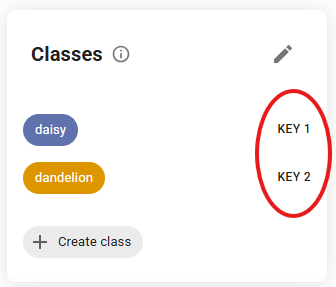
The old “class key” on the image page no longer directly assigns a class. Instead, we now fully rely on our fast hotkey labeling (1, 2, 3… for your classes) and the dropdown list at ground truth.
Why the change?
Having multiple ways to do the exact same action was causing confusion and occasional mis-labels. By focusing on the lightning-fast method - the hotkeys - you’ll label 2–3× faster, with fewer mistakes and a much smoother experience.
Your current hotkey mapping is always visible. Give it a try if you haven’t already, you’ll love the speed! 🚀
As usual, we have also included bugfixes and performance improvements. We hope you enjoy the new features and improvements!
18 Nov 2025
Feature
Bugfix
Performance
Security
Highlight
Improved dataset sharing and dataset access control
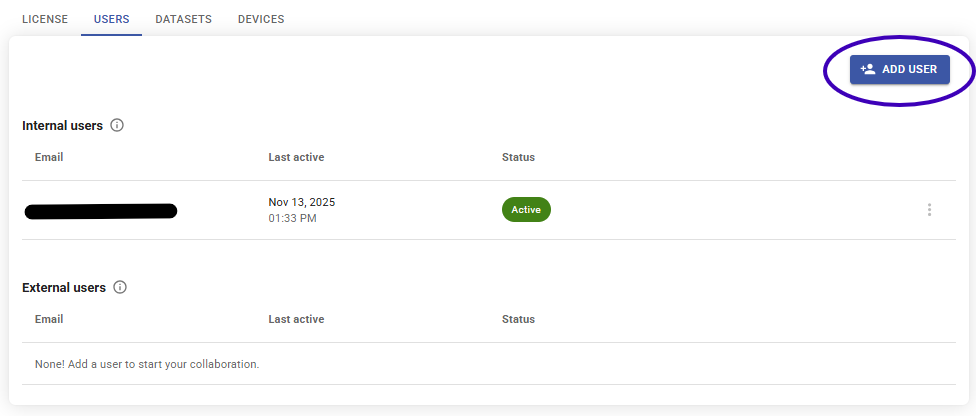
You can now share datasets with current AI Lab users! By sharing datasets you can collaborate with your team members or customers and make your datasets accessible to them. We have also included dataset access control for individual datasets to ensure that only authorized users can access them. Steps are as follows:
- Go to Admin dashboard
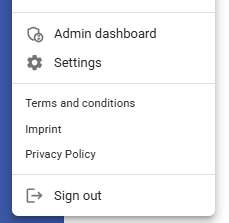
- Go to "Users", click "Add user" and enter the invitee's email address. By default the external user has no access to any of your datasets
- Go to "Datasets" of admin dashboard, click the "Manage access rights" icon of the dataset that you want to share. Enable the "Access" checkbox of the user that you want to share the dataset with.
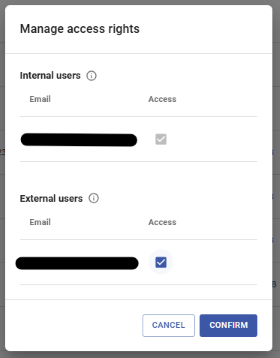
- Click confirm. Your external user can now access the dataset!
Dark mode
Enable dark mode from your settings to reduce eye strain and keep the interface comfortable during late-night sessions.
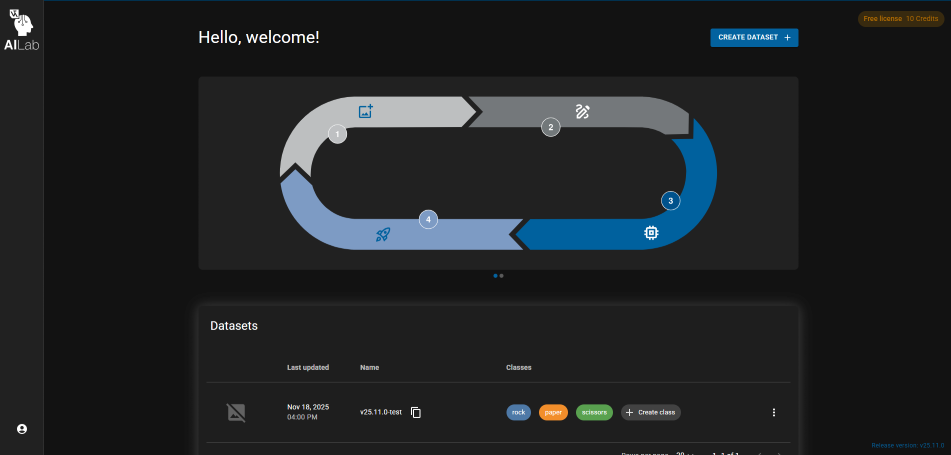
As usual, we have also included bugfixes, performance improvements and security updates. We hope you enjoy the new features and improvements!
- Performance improvements and minor bugfixes
- Performance improvements and minor bugfixes
- Performance improvements and minor bugfixes
We're absolutely thrilled to announce the public release of the AI Lab!
For more details please refer to the highlights.