v26.03.0 #
23 Mar 2026
Highlight
Preview resized image
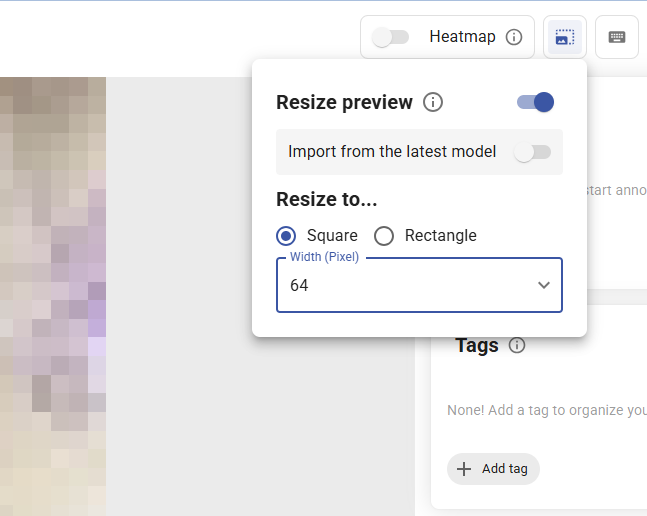
You can now preview how your images look after resizing, directly on the image page! Since AI models always resize input images during inference, this tool helps you verify that key features remain visible and class-defining details are preserved at your target dimensions.
To get started, open any image on the image page and click the Resize icon in the toolbar (or press R). Once enabled, the icon turns blue and the view resets to fit the screen automatically.
You can choose between square or rectangle resize modes and specify your target dimensions - the same pixel options available on the model configuration page. Your resize settings are saved per dataset in the browser, so they'll be ready next time you return.
Want to match your model's exact input size? Toggle Import from latest model to automatically apply your model's configuration to the preview. If no model has been trained yet, you'll be prompted to train one first.
Filter images by date and time
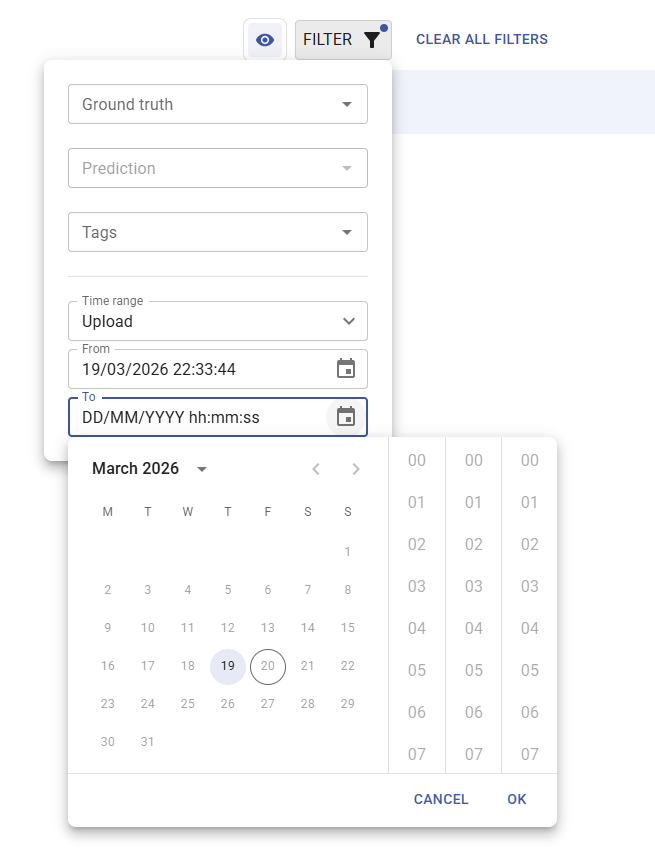
You can now filter images on the dataset page by date and time range! This makes it much easier to find images from a specific capture session, review recently uploaded batches, or track down changes made within a particular time window.
Click the Filter button and specify your desired range — then choose whether to filter by upload, creation, or last updated. Only images matching your criteria will be shown, so you can stay focused on exactly what you need.
As usual, we have also included bugfixes and performance improvements. We hope you enjoy the new features and improvements!